
Introduction
We’re excited to announce one of the most significant updates in Uncode’s history! Version 2.10.0 introduces a revolutionary navigation system that completely transforms how you create and manage menus across your WordPress sites. This update took longer than expected, but along the way we developed groundbreaking features that we felt were essential to integrate. Some of these features are entirely unique and don’t exist in other themes, representing true innovations in WordPress navigation. We need to take a moment to explain our development process because these aren’t just incremental improvements – they’re paradigm shifts that will help you understand how to leverage these extensive new capabilities to their fullest potential.
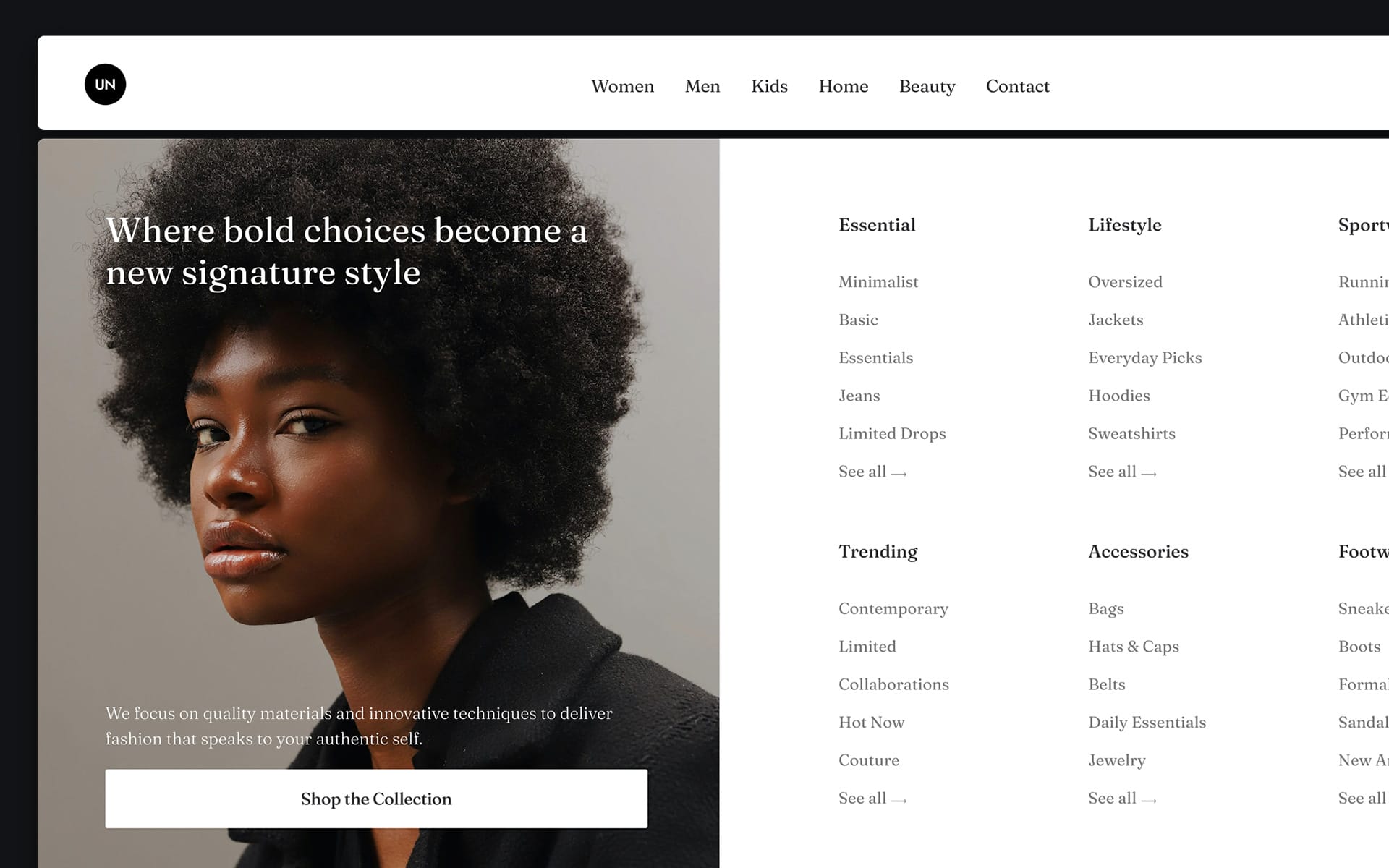
Megamenu with Content Blocks
Our first challenge seemed straightforward: display a Content Block inside a Menu dropdown. But immediately, we hit our first hurdle – we needed these Content Blocks to behave differently depending on context. Sometimes you want a full-width Megamenu spanning the entire screen, other times you need something constrained like a traditional dropdown.
Moreover, think of it as using familiar Page Builder elements – text, headings, images, all the modules you already know – but now they need to work inside a Menu context instead of the main page body. This created an immediate problem: once loaded inside the Menu, modules can be affected by the Menu’s own CSS inheritance.
We had to normalize as many modules as possible to function properly within the Menu context. We can’t guarantee every module with all options will work perfectly yet, but we’ve systematized a substantial number. For now, please refer to our Demo where we’ve created a page with different Megamenus – some containing Posts, Carousels, Marquees, Videos, Bento grids, and Forms. Let us know what needs normalization, and we’ll add it if feasible.
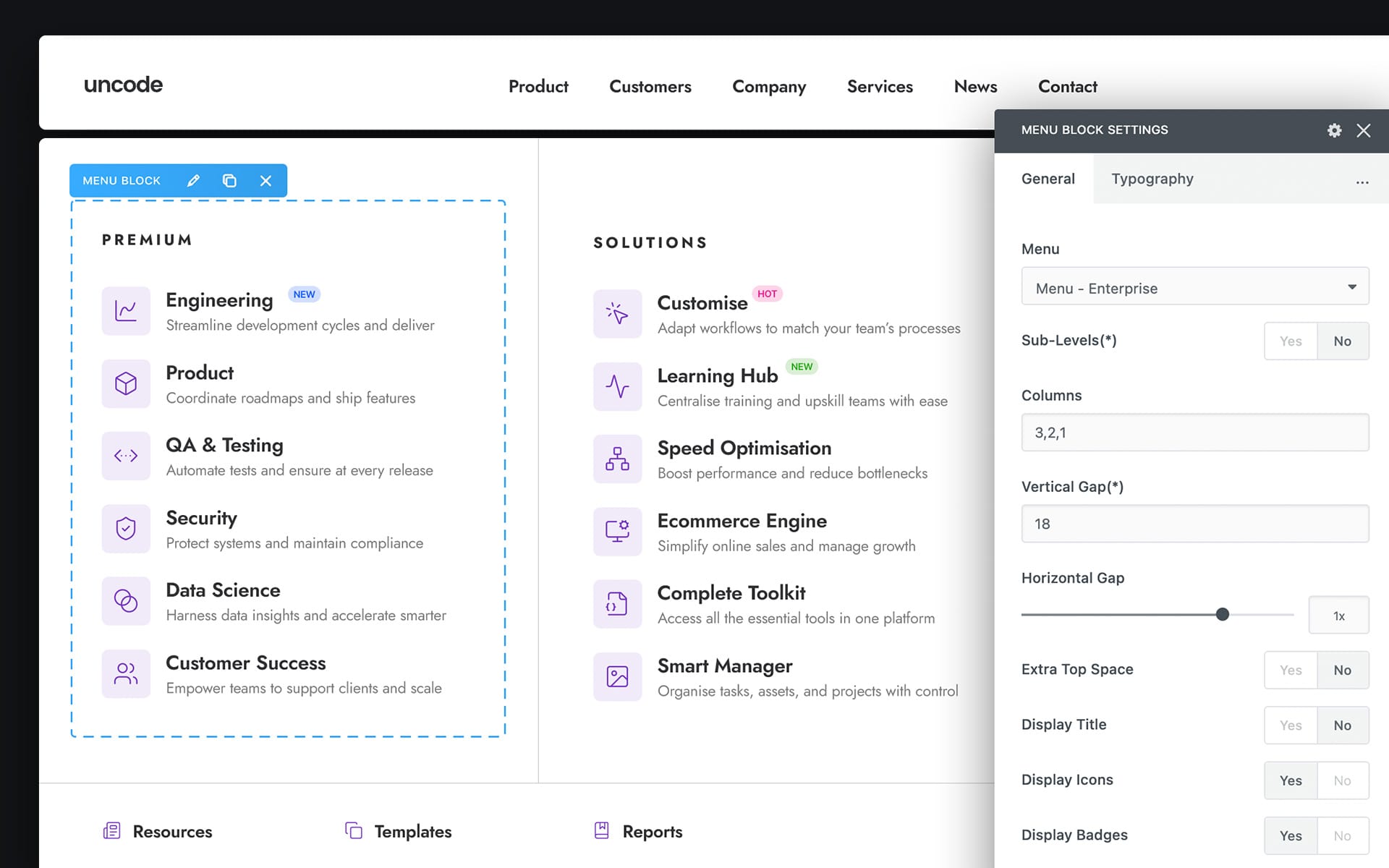
The Menu Block module
Once we had Content Blocks working in Megamenus, we studied real websites extensively to understand how to create functional navigation. What we discovered was that we needed an advanced module specifically for creating Menu items.
This led to the Menu Block module – a tool that lets you display WordPress Menus with advanced options. This module enables everything from simple Menu lists to complex responsive column layouts, and can transform into accordions for both mobile and desktop. The same Menu can appear completely different just by adjusting the module settings.
Here’s the power: one Menu structure, infinite presentation possibilities. Want a multi-column grid on desktop? Done. Need a clean accordion on mobile? Simple setting change.
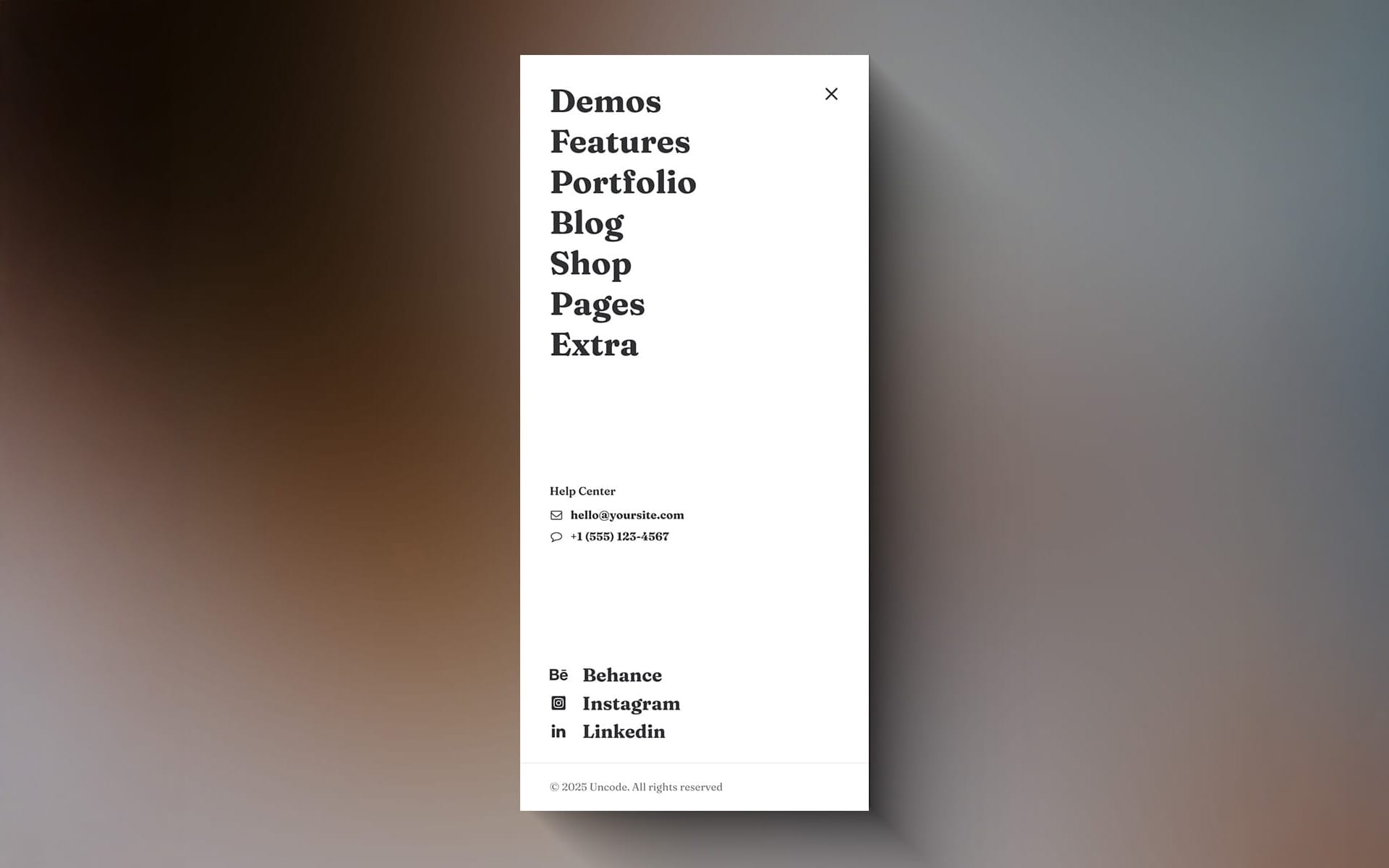
Menu Mobile with Content Blocks
With our desktop Megamenus functioning perfectly, we needed to address mobile. After examining countless sites, we found several approaches: some simply let Megamenus adapt responsively using grid systems, others hide desktop rows and show mobile-specific ones, and many show a completely different, simplified mobile menu while maintaining the same link structure.
We implemented the ability to create mobile Menus with Content Blocks through a dedicated option. When activated, this replaces the desktop Menu on mobile devices, giving you complete control over the mobile navigation experience.
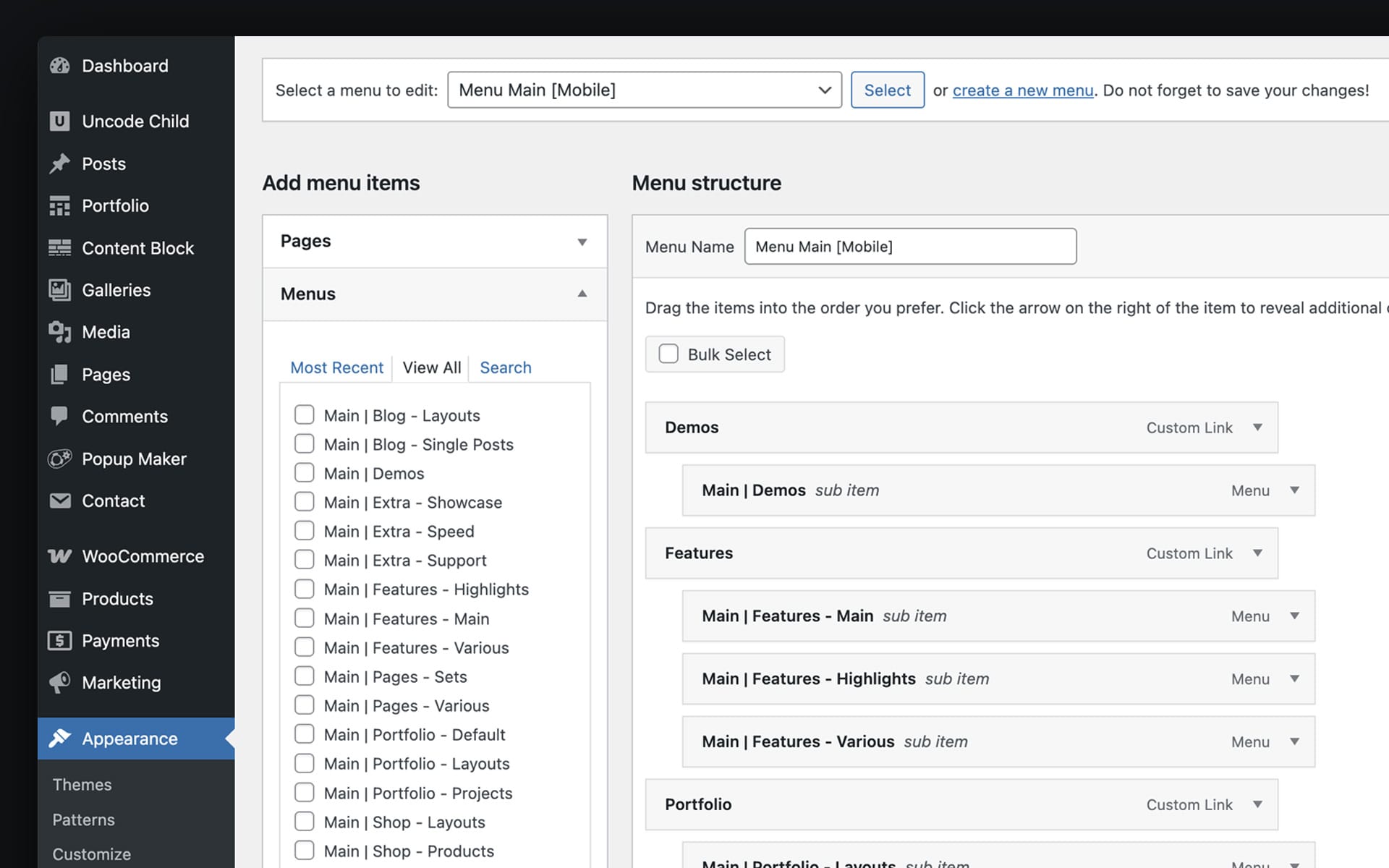
The Menu Composite System
Here’s where we encountered something that really bothered us. Having separate desktop and mobile Menus meant maintaining two different structures in WordPress. For simple sites, that’s manageable, but for complex sites using advanced Megamenus? That’s a maintenance nightmare.
Imagine updating a link and having to modify it in different locations every time. Even worse, forgetting one update results in inconsistent navigation across your site.
So we coded a solution that doesn’t exist in any other theme: Menu Composite. This function allows you to insert smaller Menus within larger ones directly in WordPress’s native Menu Editor. You can take all the Menu fragments that compose a Megamenu and make them behave as elements of a single Menu.
Here’s a practical example: our new Uncode demo’s Features section has a desktop Megamenu design composed of different Rows and Columns containing smaller Menus. In the Menu Editor, we’ve composed this as if it were one Menu. Now we can display this same Menu with mobile styling. When you need to update, add, or remove a link, you do it once in the Menu fragment and the change appears everywhere that fragment is used.
Beyond maintenance benefits, this makes Menu organization cleaner – working with small Menu fragments instead of one massive Menu with dozens of items.
What’s next
Reaching this development point makes the next steps obvious. The natural progressions are creating an Overlay and Vertical Menus built with Content Blocks where you can create the main Menu via Menu Block and enrich the Menu with all available Page Builder elements. After all, there’s not much difference from the Mobile Menu with Content Blocks.
After this, the real game-changer that this foundation enables is the Menu Builder for the main Navbar – the ability to design your primary navigation area using the complete Page Builder system. This has been one of the most requested features in Uncode’s history, and now we finally have the technical infrastructure to make it happen properly.
What started as “can we display Content Blocks in menus?” evolved into laying the groundwork for complete navigation revolution. We’re not just building features; we’re creating the technical foundation for a new paradigm that will put unlimited design power directly in your hands for every aspect of your site’s navigation.
Additional Resources
This update introduces significant changes to how Menus are structured and managed.
To help you navigate these changes, we’ve prepared additional documentation covering
specific aspects of the new system.
Demo Menu Organization Guide
After importing Demo Contents, you’ll see around 30 Menus in your WordPress Menu page.
This guide explains how they’re organized, their naming conventions, and how to apply
the same structure to your own website.
Importing Advanced Menus
Learn why advanced Megamenus and Mobile Menus aren’t imported by default, and how to
activate them if you want to start with the same setup as our demo.
How to update Uncode
There are three methods to update your theme: the easiest way is the Automatic Update which requires you to register your purchase, the Envato Market Plugin update method and the traditional method that involves more steps via WordPress or via FTP. Please find more info in the dedicated documentation:
Links
Change Log
2.10.0 (2025/11/19)

ADD:

- Megamenus with Content Blocks
- Mobile Menu with Content Blocks
- Menu Fragments and Composite Menu system
- Menu Block module
- Toggle button module
- Show submenu on click option
- Badge inline shortcode:
- New Demo Contents
- New Megamenu Wireframes

IMPROVEMENTS:

- Demo Import performance
- Ability to import Content Blocks in Single Layout imports
- Row limit width option
- Subtle animation
- Titles layout gap on Mobile

FIX:

- Custom font size preview in FrontEnd Editor for Tabs module
- Posts Carousel on Firefox
- Menu Justify on Safari
- Remove Menu Padding Mobile option
- Custom Carousel Navigation padding on Mobile
- Empty paragraphs in Text module on Firefox

UPDATES:

- Uncode Core 2.10.0
- Uncode WPBakery Page Builder 8.7.1.1
- Uncode Wireframes 1.9.0